




At Refresh Cartridges we sell both chipped remanufactured HP 940XL cartridges and cheaper units that require the chips to be transferred from the old cartridges. You can use chips from HP original cartridges, remanufactured or even compatible cartridges. As long as the chips can still be recognised by the printer it will continue to use the cartridge. Please follow the steps below to complete the process.
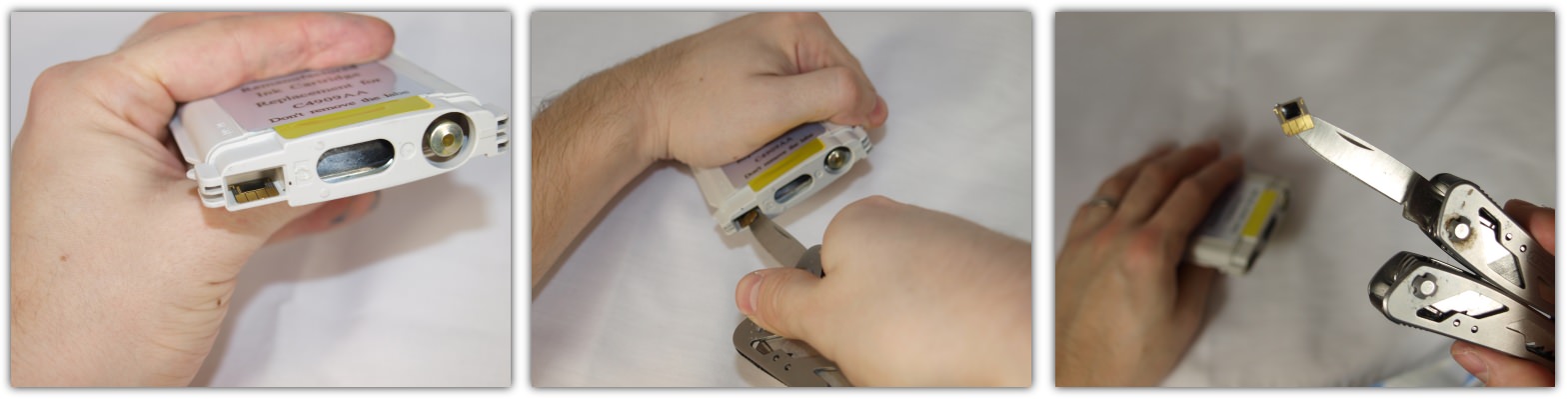
- Remove the chip from the old cartridge. I would recommend using a craft knife or another very thin blade and sliding it gently under one corner. You should then be able to wiggle the blade gently, gradually sliding the blade under the chip fully and removing it.
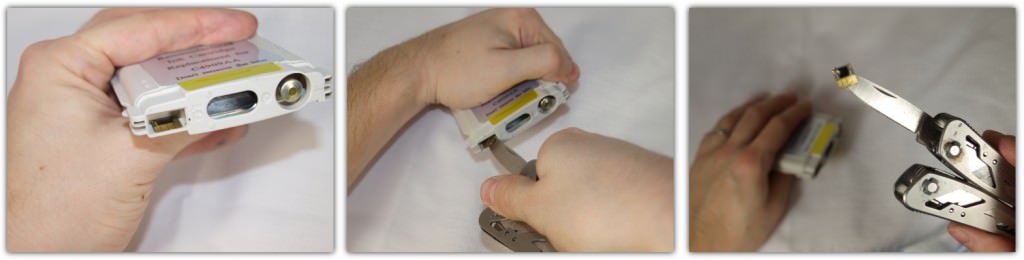
- Apply double sided tape. I find most chips come away with a sufficient amount of adhesive to skip this step, however if you are unlucky simply peel of one side of the tape and stick the chip to a corner. You can then cut off the excess tape before removing the backing plastic.

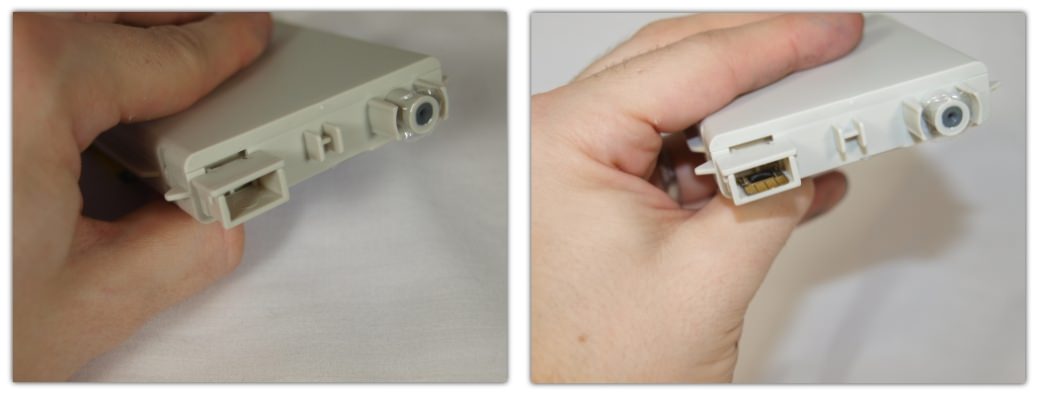
- Place chip on new cartridge. Simply put the chip in the same position on the new cartridge that is was on the old. Please make sure that when the round metal ink outlet is on the right the chip is stuck to the inside bottom of the slot. Then apply pressure with a finger to ensure the chip is firmly fixed.
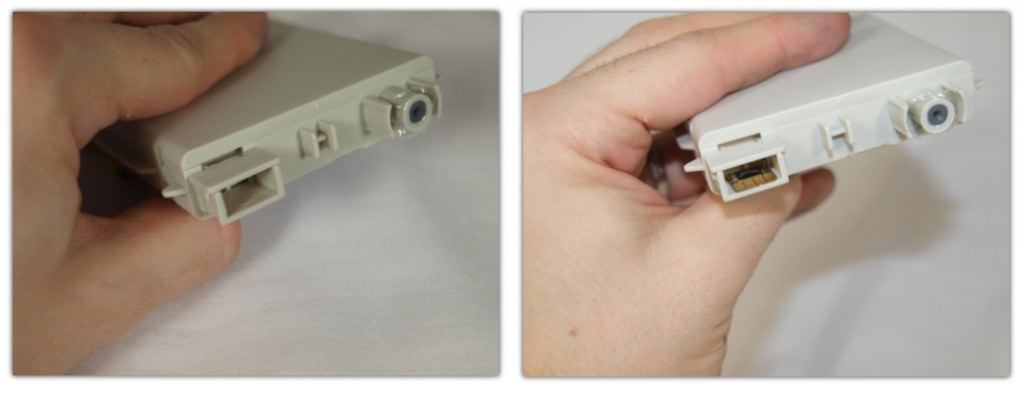
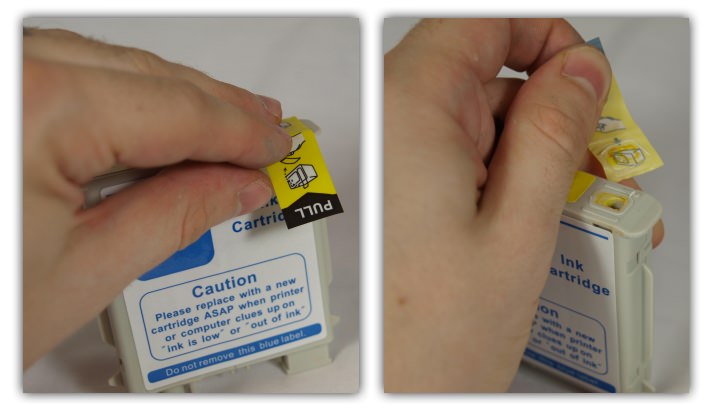
- Remove the pull tab. Like many cartridges you have to remove a yellow membrane from the cartridge in order to let the ink flow. Just locate it and peel the tab back.

- Install the cartridge. Just pop the new cartridge back into your machine.

You should now get some kind of warning that the cartridge has been used before and the ink level estimate is low/empty on screen. These messages normally say “The original HP ink in the following ink cartridge has been depleted, information about ink levels will not be available” or “Printer failure or damage due to the use of a non-HP or refilled ink cartridge will not be covered under warranty, replace the ink cartridge or press OK to continue”. Whatever the case the message can be easily dismissed by pressing OK. If there is no message on screen and lights on your printer start flashing then you should be able to continue by simply pressing your printers “reset” button.
I hope this guide helps but if you have any other questions or comments, please get in touch via any of our social media platforms.
These cartridges are compatible with a variety of printers including:
[hide-this-part morelink=”Show Compatibility”]
- HP Officejet Pro 8000
- HP Officejet Pro 8000 Wireless
- HP Officejet Pro 8500 A809
- HP Officejet Pro 8500 A909a
- HP Officejet Pro 8500 A909g
- HP Officejet Pro 8500 A909n
- HP Officejet Pro 8500 All-in-One
- HP Officejet Pro 8500 Wireless
- HP Officejet Pro 8500A e-All-in-One
- HP Officejet Pro 8500A Plus e-All-in-One
[/hide-this-part]

