




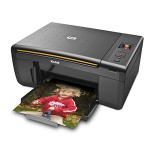
In this post we will show you how to perform some basic maintenance on the Kodak ESP 3250. These videos and written instructions are essential steps in troubleshooting nearly any print quality issue.
How do I print a test page on a Kodak ESP 3250?
I would recommend obtaining a printer test page as the first step in troubleshooting print quality issues such as missing colours, discoloured prints or even stripy pages for the Kodak ESP 3250. This test page can be printed directly from the printer in a matter of minutes.
Ensure you are on the main page of your printers display (simply press any button if you are not) and then follow the steps below:
- Repeatedly press the DOWN arrow on your printer until “Maintenance” is highlighted on the LCD display.
- Press the ‘OK’ button.
- Press the down button again several times untill “Print Test Page” appears on the second screen.
- Press ‘OK’ button once again.
Your printer with then print a test page that features a whole host of information relating to error codes, the amount of pages printed and much more. At the bottom of the aforementioned page you will see a breakdown on the black, cyan, magenta and yellow ink both in solid block and intricate pattens. Using this information you should clearly be able to identify which colours are affecting the overall quality of your prints.
How do I do a cleaning cycle on a Kodak ESP 3250?
Cleaning the printhead of an inkjet printer is the simplest way for an end user to improve the quality of their prints. Thankfully on the Kodak ESP 3250 the process is very quick and can be done directly from the printer itself.
From the “Main Menu” screen perform the following steps:
- Repeatedly press the DOWN arrow until “Maintenance” is highlighted on the second page.
- Press the ‘OK’ button.
- Press the DOWN arrow until “Clean Printhead” is selected.
- Press the ‘OK’ button again.
Your printer will now display “Cleaning…” on the LCD display while it is flushing the printhead with small amounts of fresh ink. Once complete I would recommend printing one of the printer test pages covered earlier in this article to check for improvements. If you are still not 100% happy with the quality you can repeat the cleaning process 2-3 more times.
I hope that you have found the guides above useful, but if you have any other questions, please get in touch via any of our social media platforms.

