




There are a variety of reasons to remove a printer for your computer. These range from a simple bit of spring cleaning or having got rid of the printer, to more difficult issues like your printer showing as offline. Whatever the case it is relatively easy to do in Windows 7 and should only take you a few minutes.
Video Demonstration
If any of the steps mentioned in this guide need clarification you can see them performed in this short video.
Removing the Printer
For most users this step will be enough. This will remove the printer from the list of devices available whenever you go to print, helping keep the printing process as simple as possible.
- Go to the Start icon on the bottom left of your screen then choose Control Panel and then Devices and Printers.

- Right click the printer from Devices and Printers and select “Remove device”.

Removing Drivers and Packages
If you are looking to remove all traces of the printer you will want to remove software packages and drivers. These can typically not be removed like a regular piece of software and require you to access the “printerui” utility.
- Make sure you are using windows as an Admin or sign-in as one.
- Go to Start>All Programs>Accessories>Command Prompt.
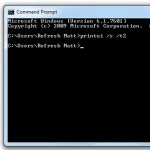
- With command prompt open type “printui /s /t2″ including the spaces to open the Print Server Properties window.

- Now remove the Driver and Package for the printer in question.
Removing Additional Software
If you used a disc that came bundled with the printer during setup you will almost certainly have additional software installed (that you have probably never even used). For the sake of completeness you may want to remove this also. Thankfully getting rid of such software is mercifully easy:
- Go to Start>Control Panel>Programs and Features
- Double-click the software in question.
- Follow the prompts for the software’s removal.
I hope you have found this guide useful. If you have anything to add or have any questions, please get in touch via any of our social media platforms.

