2018-07-05T10:48:09+00:00
Canon i320 & i255 Waste Ink Tank Counter Reset
2011-10-04T12:34
October 4, 2011
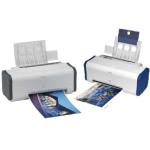
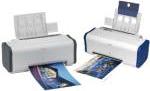 The “Waste Ink Tank” counter reset procedure detailed below is valid for the Canon i320 & i255.
Important!

Before you start please note that the Resume button mentioned below will be represented by this symbol on most printers.
Step 1 : Entering service mode manually
- Unplug the power and USB cables.
- Open printer cover and hold power button.
- Re-connect power.
- Close cover and then release power button.
Alternative Step 1: Entering service mode manually
- Turn off the printer and unplug the USB cable.
- Press and hold the POWER button and turn on the printer. Note: The indicator (L.E.D.) should be green.
- Press the RESUME button once to turn the LED orange.
- Press the RESUME button again to turn the LED green.
- Release both buttons.
Step 2 : Permanantly Changing the Software
- Reconnect the USB cable.
- Open “General Tools” software and select (USB PORT)
- Choose (SET DESTINATION 1) And it should be reset.
Notice
Please note that by following this procedure you are not emptying the tank/pad but simply resetting the counter that estimates how full it is. Please read our full article
here for more information.
About the author
Matthew Stevenson
I have been involved in the printer industry since I was 18 and have been an employee of Refresh Cartridges since early 2009. I am a dedicated family man, gamer, music fan and friend to all.
I write the majority of the content here on Igloo and am responsible for its upkeep.
Refresh Cartridges