




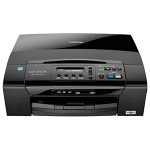
In this article we will show you how to perform some basic maintenance on the Brother DCP-375CW. These videos and written instructions are essential steps in troubleshooting nearly any print quality issue.
How do I clean the printhead of the Brother DCP-375CW?
Cleaning cycles are a great way of improving the print quality of your Brother DCP-375CW and get help resolve issues with missing colour or even striped prints. The process is quick, easy and can be done with a few quick button presses from the printer itself.
With the printer switched on and ready to print, do the following:
- Press the ‘Ink Management’ button on your printer.
- Press the DOWN arrow once so the LCD display says “Cleaning”.
- Press ‘OK’.
- Use the UP and DOWN arrows to switch between “Black”, “Colour” and “All”.
- Select the relevant option for the print quality issue you are experiencing with ‘OK’. If you have any doubt I would recommend selecting “All”.
Your printer will now display “Please Wait” and perform the cleaning cycle. Once complete I would recommend either printing a test page and checking for improvement. If the issue remains you can always perform more cleans to further flush the lines with ink.
How do I print a print quality test page on the Brother DCP-375CW?
Test prints are a great way to see exactly where the trouble lies when you experience print quality issues with your Brother DCP-375CW. These test pages break down the four colours (black, cyan magenta and yellow) that the printer uses and any breaks or missing colours can easily be identified.
To print a test page simply do the following:
- Press the ‘Ink Management’ button on your printer.
- Press ‘OK’ to select “Test Print”.
- Press ‘OK’ to select “Print Quality”. If you are experiencing shadowing or similar use the UP and DOWN arrows to select “Alignment”.
- Press either of the ‘Start’ buttons on your printer (both ‘Colour’ and ‘Mono’ will do the same).
The test page will now print. You should now be able to see which colour or colours are causing you problems and I would recommend using the cleaning cycles mentions above to attempt to resolve them.
I hope that you have found the guides above useful, but if you have any other questions, please get in touch via any of our social media platforms.

