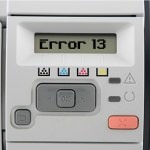

Paper jams can occur at entry, during printing or when the paper exits from HP LaserJet printers. Depending upon the situation please follow the relevant advice below:
- If your printer is not picking paper up out of the paper tray, check the rollers closest to the tray. If they look overly smooth/shiny then replacement rollers and pickups can normally be purchased cheaply from eBay are relatively easy to replace. If the jam is occurring in a HP Laserjet 4, 4+ or 5 with a 500 sheet feeder installed, check that the balance knob is centred and you have a full ream of paper installed.
- If paper is jamming at any point during pickup and exit it could be a number of things. First of all remove all trays and open all doors to try and follow the path of the paper through the machine. Inspect the inside of the printer thoroughly for any ripped pieces of paper or sticky residue left by labels and remove/clean as necessary.
- Ensure all paper trays are firmly installed and that corner tabs on them aren’t bent or broken. Inspect trays have lifting springs correctly fitted as they can easily pop out if tray has been dropped.
- If paper scrunches up inside by the toner cartridge in a HP LaserJet IIP, IIP+ or IIIP please contact HP Technical support.
- Please ensure the paper size specified in the program you are attempting to print from matches the paper size in the relevant tray.
- Paper can jam as it leaves the machine if the exit sensor arms cannot move freely. Sensors are typically mounted on the fuser assembly or adjacent to it and these plastic arms block and unblock an optical sensor each time a sheet passes through the machine. Ensure the arms are not stuck, knocked out of place and can move freely.
- Open the rear door of the printer and then close it again firmly. This door Open doors can cause 13 paper jam indications.
- If you are unable to resolve the error using the advice above please contact HP technical support if the machine is in warranty or a technician if the warranty has expired.