





In this brief guide, we will show you how to disable the automatic updating of your Epson inkjet/laser printers software, in a few easy steps. This process is easily reversible if you change your mind further down the line.
Why would I stop my Epson printer updating?
Whilst software updates for technology can be important for maximizing the efficiency and safety, printer updates can sometimes result in you not being able to use your machine with compatible or remanufactured cartridges. Sadly, we have experienced updates in the past few years from many different manufacturers that have offered no additional functionality, just limit the end users choice of cartridges.
As such, we generally recommend that these updates are disabled, unless you plan on running your Epson printer using original cartridges only.
How do I disable Epson printer firmware updates?
With its default settings, your printer will periodically search for software updates and apply them to your printer automatically. Eagle-eyed users may even have spotted the option to stop your printer updating when installing their printer initially…
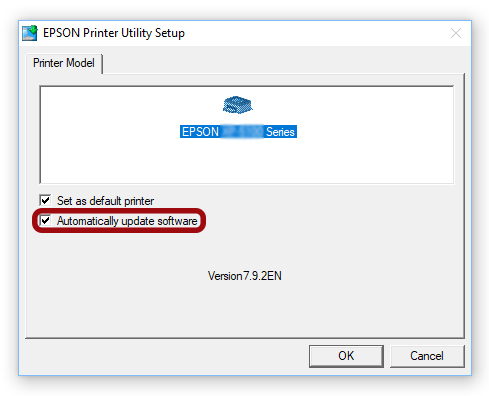
This would however be easy to miss, so thankfully this option can be disabled at a later date. To change how your printer deals with firmware updates, simply follow the steps below:
- Locate your printers icon in the Windows taskbar at the bottom and right click on it.

- From here, click “Software Update Settings” at the bottom of the list.

- With this menu open, you can choose to either set the frequency of updates or choose “Never” to prevent all updates in the future.

- Once applied, just click OK to exit.
We have never experienced security updates or anything that we would consider an essential download for these printers, but if you are concerned we would recommend checking for announcements from Epson periodically.
We hope that this guide has helped, but if you have any other further queries, please get in touch via any of our social media platforms.

