




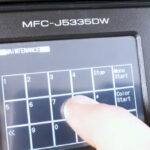
The ‘Waste Absorber Full’ message prevents you from printing on the MFC-J5335DW and several other similar Brother inkjet printers. It is especially frustrating when you realise there no reason why you can’t carry on printing other than this message. Continue reading to find out what makes me say this and how you can rid yourself of this error.

What is a “Waste Absorber”?
Whenever you use your Brother MFC-J5335DW printer, small amounts of waste ink are deposited into a sponge in the bottom of the printer, normally referred to as a Waste Absorber. After a while your printer will estimate that the ink absorber in the base of your printer is saturated with ink and any further printing could cause ink to overflow. This estimate is based on how many pages your Brother printer has produced and how many manual/automatic cleans have performed. Sadly, this is not a particularly accurate method of measuring how full an ink absorber is and the majority of the time your printer could print hundreds of pages before there was any danger of any ink escaping. However, getting the waste ink tank changed and resetting the counter can be an expensive procedure if you get a service centre to do it on your behalf. In many cases owners of Brother inkjet printers report the cost of the procedure outweighs the value of their printer.
With this in mind we suggest resetting the purge counter of your Brother printer using the method described below and continuing to use it until waste ink begins to overflow inside/outside the printer. This ensures you get the most out of your printer and can avoid replacing it until it becomes necessary to do so. I do however recommend you protect any surfaces around the printer should you decide to reset the purge counter to save any surfaces becoming stained with printer ink.
Video Guide
Purge Counter Reset Instructions
With your printer on, take the following steps…
- Hold down the ‘HOME‘ button (represented by a house icon) for a few seconds, until a black screen with “Serial No”, “ROM Version” and other details appear.
- Hold down the fourth option (a blank bar) for 3 seconds. A keypad should appear on screen.
- Enter *2864 on the on screen keypad. This will cause ‘MAINTENANCE‘ to appear in the top left corner.
- Enter 80 on the on screen keypad.
- Press ‘>>‘ twice, and you should see DOWN, UP, LEFT and RIGHT arrows as the first four buttons on the screen.
- Press the UP button on screen, until ‘PURGE COUNT‘ is displayed in the top-left corner.
- Press ‘<<‘ twice, to get back to the on screen keypad.
- Enter 80 on the on screen keypad, again.
- Press ‘>>‘ once, and you should see A, B, C and D as the first four buttons on the screen.
- Press the SET button and the Stop button, on screen.
- Press ‘>>‘ twice, to bring yourself back to the on screen keypad.
- Enter 99 to complete the reset.
Your purge counter is now reset and you should now see ‘Fax’, ‘Copy and Scan on screen. From here you can continue printing as normal. If however this has not cleared the error message, I advise going through this guide again following the instructions to the letter. If the error persists please let us know.
I hope you have found this guide useful. If however you have anything to add or any further questions, please get in touch via any of our social media platforms.

