




If your Brother colour laser printer is still displaying ‘Cartridge Error’ or ‘Replace Toner’, even after you have replaced a toner cartridge, it may be that the counter has not reset. This can occur with genuine Brother TN243/TN247 toner cartridges, compatible versions or even remanufactured versions.

How to I stop these ‘Cartridge Error’ and ‘Replace Toner’ messages?
Thankfully, there is a quick and easy method to remove these messages that can be done directly from the printer. By following the steps below, you should be able to get yourself up and running in just a few minutes…
Step 1. With the cartridge (or cartridges) installed, make sure that the printer is on and open the front cover. On most models, the LCD screen will change to display the message “Cover is Open”.
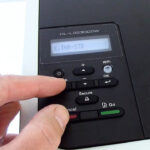
Step 2. Hold down the ‘Back’ and ‘Cancel’ buttons on the printer at the same time, for a few seconds. Then release both buttons at the same time, and immediately press ‘Back’ button again. If done correctly, the screen will now display one of the codes shown in the next step.

This part takes a little co-ordination, so keep at it if it doesnt work immediately. Try varying the amount of time ‘Back’ and ‘Cancel’ are held if you struggle.
Step 3. The code shown on screen denotes the colour and capacity of the black, cyan, magenta or yellow toner cartridge that is currently selected. Press the ‘UP’ and ‘Down’ (▲/▼) buttons on your printer to cycle through the options until you find the correct code for the cartridge you wish to resent.
Please use the table be,ow to ensure you have the correct code selected…
| Cartridge Type | Cartridge Code | Reset Code |
| High Capacity Black | TN247BK | K.TNR-HC |
| High Capacity Cyan | TN247C | C.TNR-HC |
| High Capacity Magenta | TN247M | M.TNR-HC |
| High Capacity Yellow | TN247Y | Y.TNR-HC |
| Standard Capacity Balck | TN243BK | K.TNR-STD |
| Standard Capacity Cyan | TN243C | C.TNR-STD |
| Standard Capacity Magenta | TN243M | M.TNR-STD |
| Standard Capacity Yellow | TN243Y | Y.TNR-STD |
Step 4. Finally, press ‘Yes’ or ‘OK’ to confirm, and the printer will get to work resetting the toner, displaying ‘Accepted’ when it is done. Some machines may require an additional prompt to finalise the reset, but this will be displayed on screen if needed. You can now close the cover again and carry on printing.
If you have another toner that needs resetting, you can run through the process again.
What printers will this work on?
This process has been confirmed for all of the colour laser printer models listed below:
- Brother DCP-L3510CDW
- Brother DCP-L3517CDW
- Brother DCP-L3550CDW
- Brother HL-L3210CW
- Brother HL-L3230CDW
- Brother HL-L3270CDW
- Brother MFC-L3710CW
- Brother MFC-L3730CDN
- Brother MFC-L3750CDW
- Brother MFC-L3770CDW
We hope this has helped, but please let us know any further questions by email or on Facebook.

