





Regardless of the operating system, one of the most common printer issues I have encountered on forums is a printer showing as being “Offline” in error. The reason for this happening are numerous and range from the lack of a physical connection, to drivers issues or even electronic faults within the printer. Regardless of the cause an “Offline” printer message can usually be solved by following some simple steps.

This guide has been written specifically for Windows XP, but the advice here is applicable to many printer manufacturers including Brother, Canon, Epson, Dell, HP, Kodak Lexmark and other lesser known manufacturers..
How Can I Get My Printer Back Online?
Our advice to resolve this issue has been broken down into smaller categories and sorted roughly from the most common/easy to sort to the more involved processes that are much less common.
I know you may be tempted to skip the early steps and assume cables etc are all connected, but I would strongly suggest not doing so as you go through this guide. I feel every step listed below is well worth the time it would take to perform and it is much more likely that a USB cable has come free than an obscure driver conflict having occurred on your PC.
Check Connections
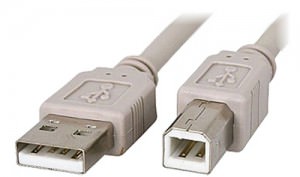
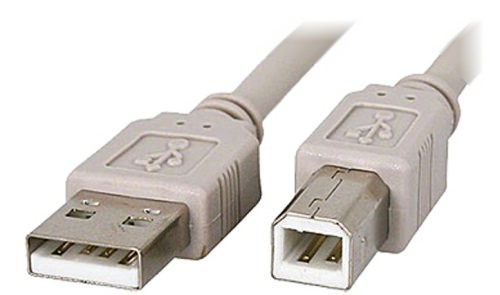
- Locate the relvant USB A-B cable and follow it from printer to PC, making sure both ends are firmly connected. If your printer is networked do the same for the CAT45/Ethernet cable used to connect it to the network.
- Plug the USB at the PC end into any other USB ports (if you have any available).
- Try another USB cable with your printer and PC/laptop. If you own another fairly modern printer then the cable will almost certainly have the same USB A-B connections pictured below.
 Set Printer to “Online” Manually
- Click Start>Settings>Control Panel>Printers & Faxes.

- Right-click the printer in question from the list and select “Use Printer Online”.
Clear All Remaining Print Jobs
- Open the print queue by double-clicking the relevant printer.
- Right-click any print jobs present and select “Cancel” from the drop down menu.
- If any print jobs refuse to be cancelled try restarting you PC and trying again.
- Select Printer from the menu at the top of the print queue.
- If a tick is present next to “Use Printer Offline” in the drop down menu click on it to deselect the option.
Remove and Reinstall the Problem Printer
- Right-click the printer from Start>Settings>Control Panel>Printers & Faxes and select “Delete” from the drop down menu.
- Click “Add a Printer” in the bar to the left under Printer Tasks. Alternatively you can re-install using the printers software disk or downloading it from the manufacturers website.

Removing Drivers and Software for the Printer
- Make sure you are using windows as an Admin or sign-in as one.
- Go to Start>Settings>Control Panel>Add Remove Programs.
- Select your printers software from the list and click Change/Remove.
- Re-install your printer again using the software disc provided or download any available software from the manufactures website.
Hopefully your printer is now showing as being “online” and ready to print. If not there is likely to be an issue with the printer electronically and I would advice contacting the printers manufacturer or a printer technician.
If however you have anything to add or any further questions, please get in touch via any of our social media platforms.

