




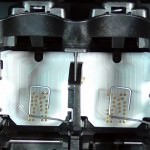
Hewlett Packard’s “Check Ink Cartridges” error message can appear in a variety of circumstances and is applicable to many different OfficeJet, Deskjet or even Envy series inkjet printers. Most commonly “Check Cartridges” or “Check Ink Cartridges” means that your HP printer simply cannot recognise the colour or black ink cartridges. Thankfully however this error message can usually be cleared with some basic troubleshooting.

Quick Video Guide
How do I clear the “Check Ink Cartridges” message?
Whilst there is no definitive fix or workaround to clear this error message, the majority of the time you can get your Hewlett Packard printer up and running by checking a few things with your printer/cartridges. I would advise running through the points below and checking to see if the “Check Ink Cartridges” message has disappeared at the end of each one.
- Check Message on the HP Software Carefully:
According the manuals of several HP printers you may be presented with the “Check Cartridge” message when the printer believes the colour or black cartridge has run out of ink. However all cartridges/printers covered in this article can continue to function regardless of the estimated ink level. Hewlett Packard software has a habit of over estimating ink usage in all ink cartridges to prevent a cartridge from running out prematurely. As such we typically recommend continuing to use genuine HP cartridges and remanufactured cartridges regardless of the estimate until the ink quality begins to deteriorate due to the ink having run out. So please take a moment to check the message on your computer screen and ensure the software is not giving you the option to continue printing. - Check Both Cartridges are in the Correct Position:
The cartridges used in these printers are very similar in appearance and you would be forgiven for getting them mixed up when it comes to installing them. HP take certain precautions when designing printers to stop cartridges being installed in the wrong slot, but cartridges can still be installed either through the use of brute force or the presence of universal lids used by some third part ink cartridge manufacturers.To ensure that both cartridges are in the correct place get your cartridges into the cartridge replacement position and examine the cartridge cradle and its surrounding area. You should see some indication as to which side each cartridge goes here and check your own cartridges accordingly. It is also worth noting that you Hewlett Packard printer will need both of your ink cartridges to be installed to attempt to print regardless of if you only want to print using the colour/black ink.
- Check Ink Cartridge Codes for Compatibility:
All HP printers require certain ink cartridges are used within the printer in order for them to be recognised and accepted by the printer. Hewlett Packard use two main kinds of codes to identify their cartridges. The most common code is HP followed by 2-3 numbers (HP 300, HP 301, HP 901 etc.), but they also use a more precise product code that uniquely identifies the cartridges (CC640EE, CC643EE, CH561EE, CH562EE, CC653AE, CC656AE etc.). The correct cartridges for use in your printer can be found in your user manual, (sometimes) on/around the cartridge cradle or are easily clarified with a quick Google. Once you have the correct codes to hand simply examine the lid of your cartridges to make 100% sure they are the correct cartridge for your printer. - Check/Wipe Cartridge Contacts:
A common cause of the “Check Ink Cartridges” message is the gold contacts found on a strip on the front of the HP cartridge being obscured with dirt/ink or even physically having been physically damaged. Firstly remove the cartridges from the printer and turn the cartridge so you can see the side that faces into the printer vertically. Ensure this copper looking strip and the gold contacts are not physically damaged, then wipe them down with a piece of non-fibrous piece of tissue like kitchen towel. I would recommend wiping them down even if no dirt is visible and using alcohol based cleaning solution or cartridge flush for any stubborn marks that could be stopping the cartridge from being recognised.
- Wipe Contacts Inside the Printer:
If the cartridge contacts mentioned in the previous point are clean, it may be that the corresponding contacts inside the printer are obscured and stopping your printer from recognising the cartridge. With the cradle in the cartridge replacement position and the power off examine the similar looking contacts found in the cradle of the printer (you may need a torch). Once they are located, use the cleaning method mentioned above to ensure these contacts are also clean. Some of these contacts in these printers are raised/pointed and I would advise using caution to ensure scraps of tissue are not left inside the printer obscuring the contacts further.
- Try Another Cartridge:
It may be that the cartridge(s) in question have a genuine electronic fault that can not be detected with a visual examination. In such an instance the only course of action is to try another cartridge. If you have an old cartridge to hand that you know has been accepted by the printer previously or another new cartridge (preferably a genuine HP one) I would advising installing this to see if the message disappears.


I hope this has helped. If however the problem persists after you have tried everything above it may be that there is a genuine problem with your printer and I would advise getting in touch with HP or a printer technician.
What cartridges and printers are affected by the “Check Cartridges” message?
The “Check Ink Cartridges” error message covered in this article is applicable to the HP 300, HP 301 and HP 901.The printers compatible with these cartridges can be found listed below.
- HP 300 (CC640EE/CC643EE) and HP 300XL (CC641EE/CC644EE)
HP Deskjet D1600, D1660, D1663, D2500, D2560, D2563, D2660, D5560, F2400, F2420, F2480, F2488, F2492, F4210, F4213, F4240, F4272, F4275, F4280, F4283, F4288, F4500, F4580, F4583, HP Photosmart C4610, C4640, C4650, C4670, C4680, C4683, C4685, C4688, C4740, C4780, C4783, C4788, C4795, C4798, Envy 100, 110 and 120 e-All-in-One inkjet printers.
- HP 301 (CH561EE/CH562EE) and HP 301XL (CH563EE/CH564EE)
HP Deskjet 1000, 1010, 1050, 1050A, 1510, 2050, 2050A, 2050s, 2510, 2540, 2542, 3000, 3050, 3050A, 3055A, Envy 4500, 4502, 4504, 4505, 5530, 5539, HP Officejet 2620 All-in-One and e-All-in-One printers. - HP 901 (CC653AE/CC656AE) and HP 901XL (CC654AE)
HP Officejet 4500, 4500 Wireless, J4524, J4535, J4540, J4550, J4580, J4585, J4660, J4680 and J4680C.
You may also find the error code appears in conjunction with other Hewlett Packard ink cartridges and printers, but some points of this troubleshooting may not be entirely relevant. The printers that can benefit from this troubleshooting are too numerous to list, but if your printer cannot recognise the HP 21 (C9351AE), HP 21XL (C9351CE), HP 27 (C8727AN), HP 56 (C6656AE), HP 339 (C8767EE), HP 350XL (CB336EE), HP 22 (C9352AE), HP 22XL (C9352CE), HP 28 (C8728AN), HP 57 (C6657A), HP 110 (CB304AE), HP 351 (CB337EE), HP 351XL (CB338EE), HP 342 (C9361EE), HP 343 (C8766EE), HP 344 (C9363EE), HP 58 (C6658AE), HP 348 (C9369EE), HP 336 (C9362EE), HP 337 (C9364EE), HP 338 (C8765EE) and HP 350 (CB335EE) then you may find this article of use.
I hope you have found the information here useful. If however you have anything to ask or add, please get in touch via any of our social media platforms.

