2018-07-05T10:50:09+00:00
Canon Pixma MP460 Waste Ink Tank Counter Reset

2012-01-26T16:26
January 26, 2012
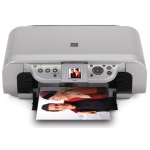 The reset procedure below is valid for the Canon MP460 only. To see guides for other printers please read the full article here.
Important!

Before you start please note that the Cancel/Stop button mentioned below will be represented by this symbol on most printers.
- Unplug the power cable
- Hold down the power button
- Plug the power cable back in
- With power still held down, press “Cancel/Stop” twice
- Let go of the power button
- This should put the printer into factory mode, wait for it to says “idle” (can take around 30 seconds)
- Press the down arrow until it says “Shipping Mode”
- Press “OK” button
- Printer should now read “Without Cleaning”, press the power button
- A test page will now print
- Open printer cover
- Unplug the power cable again
- Uninstall both ink cartridges
- Close cover
- Plug the power cable back in
- Press power button
- Reinstall both ink cartridges
Notice
Please note that by following this procedure you are not emptying the tank/pad but simply resetting the counter that estimates how full it is. Please read our full article
here for more information.
About the author
Matthew Stevenson
I have been involved in the printer industry since I was 18 and have been an employee of Refresh Cartridges since early 2009. I am a dedicated family man, gamer, music fan and friend to all.
I write the majority of the content here on Igloo and am responsible for its upkeep.
Refresh Cartridges