





Printing is the primary function of most inkjet and laser printers, but all too often users will send something to the printer, only to be left waiting… and waiting. Whilst your printer should (in theory) inform you of the issue, this information is sometimes not presented too prominently.
The advice given in this article will apply to most manufacturers including Brother, Canon, Dell, Epson, HP (Hewlett Packard), Kyocera, Konica Minolta, Lexmark, OKI, Ricoh, Samsung and Xerox, but will be focused primarily on Windows operating systems.
Investigate any errors/message given.
In theory, your printer software should immediately appear on-screen, showing you the status of your printer and giving a description of any problems.
If your printer or printer software is presenting you with an error message or code, the first step should always be to either look it up in your printer manual or Google exactly what your printer is stating. Essential first steps can often be found here, and searching for a resolution is essential. A wealth of information is available online and is likely to help you resolve it directly, just try to use reputable sources wherever possible.
Should your printer software not appear on screen, the software may have been minimised or is running in the background. Firstly, check the Taskbar that runs along the bottom of your monitor and also the system tray to the right of this bar.
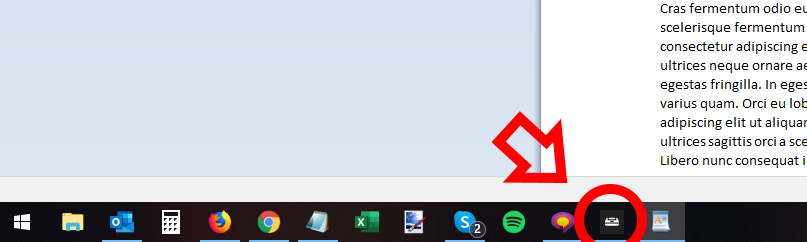

Check any that look likely, and they will hopefully contain some information as to the problem. Otherwise, it is time for us to look a little deeper.
No message? Check the selected printer.
Whilst you may have been printing to this printer for years, changes to your system/network may result in multiple instances of your printer being present or the printer being absent completely. Here I will show you how to identify any potential issues.
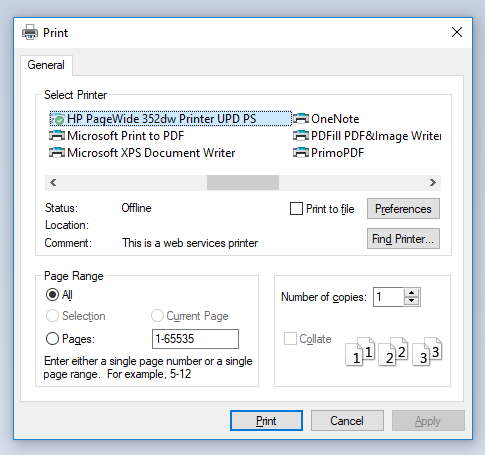
Go to print your document again, paying particular attention to where your software is sending the document. Often a list of printers will be given immediately, but there may also be a drop-down box displaying additional options. It may be that your printer appears more than once, is listed as “offline”, or has been replaced by a “Copy 1/Copy 2” version if Windows has reinstalled it.
In this example, my HP PageWide 352dw is offline. If you see this status, try the following:
Set the Correct Printer as Default
Windows may have automatically set another printer as the default device.
- Open Settings
- Navigate to Bluetooth & Devices → Printers & Scanners
- Locate your intended printer
- Click it and select Set as default
Once set, try sending your document again. If your printer still shows as offline, continue with the next steps.
Check the Printer’s Connection
USB-Connected Printers
Ensure the cable is:
- Securely connected at both ends
- Not damaged
- Plugged directly into the PC, not through a loose hub
You can also try a different USB port.
Network or Wi-Fi Printers
These will require a stable network connection.
- Make sure the printer is powered on and connected to your router
- Check the printer’s display or network report for warnings
- Restart both your router and printer
- Ensure your PC is on the same network as the printer (e.g., same Wi-Fi band)
If the printer has dropped off the network, you may need to reconnect it via its onboard menus.
Restart the Print Spooler
Windows relies on the Print Spooler service to manage print jobs. When this service hangs, printing stops entirely.
To restart it:
- Press Windows Key + R
- Type services.msc and press Enter
- Scroll to Print Spooler
- Right-click and select Restart
After restarting the service, attempt to print again.
Clear the Print Queue
A stuck print job can block everything behind it.
- Open Settings → Bluetooth & Devices → Printers & Scanners
- Choose your printer
- Click Open print queue
- Cancel any documents listed
- Try printing again
If they won’t cancel, restart the Print Spooler again and repeat the steps.
Check Ink or Toner Levels
Some printers will stop printing entirely if they believe cartridges are empty or unrecognised.
- Open your printer’s utility software
- Check for low-ink warnings
- Ensure cartridges are installed correctly
- For laser printers, gently remove the toner and rock it left to right to redistribute powder (do not touch the drum)
If the printer reports “Cartridge not recognised”, you may need to reseat or replace the cartridge.
Update or Reinstall Printer Drivers
Outdated or corrupted drivers can cause intermittent failures.
To update:
- Open Settings
- Go to Windows Update
- Check for optional driver updates
To reinstall:
- Visit the manufacturer’s official website
- Download the latest driver package for your model
- Install and restart your computer
Avoid third-party driver sites.
Check for Paper Issues
Even if you don’t see an obvious paper jam, smaller fragments or misaligned paper can halt printing.
- Remove the paper tray and reload the stack neatly
- Check all accessible doors and panels
- Look for torn scraps or foreign objects
- Ensure the correct paper size is selected in both Windows and the printer menu
Power Cycle the Printer
Sometimes the simplest fix is the most effective.
- Turn off the printer
- Unplug it for at least 30 seconds
- Plug it back in and wait for it to initialise
- Try printing again
This clears minor internal faults and resets connectivity.
When All Else Fails
If you have tried all the above steps and your printer still refuses to print, consider the following:
- Try printing from a different device (mobile, laptop)
- Try a different cable (USB models)
- Attempt to print a test page directly from the printer’s own menu
- Check whether your router is blocking devices
- Confirm the printer’s firmware is up-to-date
If the printer cannot print its own internal test page, the issue is likely hardware-related.

